
Last Updated on August 10, 2026
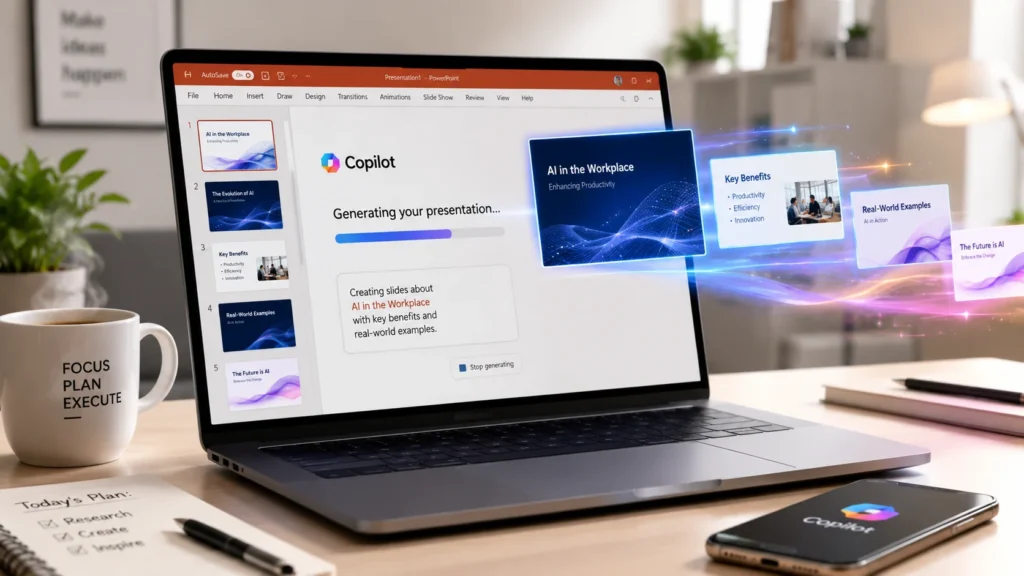
PowerPoint AI through Microsoft Copilot brings generative AI directly into your presentations. It turns Word documents into slide decks, generates speaker notes, and creates custom images in seconds. Available through Microsoft 365 subscriptions, Copilot offers 10 key features including prompt-to-deck generation, design enhancement, and AI-powered rehearsal coaching. It cuts first-draft time from hours to minutes while keeping files in the familiar PPTX format. With over 1 billion PowerPoint users worldwide, this technology is reshaping how professionals create and deliver presentations.
The Presentation Problem Nobody Talks About
The template choices overwhelm you. The design decisions paralyze you. And somehow, two hours later, you have three slides that look terrible.
Sound familiar? You’re not alone. Most professionals spend 3-5 hours creating a single presentation. Much of that time goes into formatting and layout rather than actual content.
Enter PowerPoint AI. Microsoft has been quietly transforming how we build presentations with Copilot, their AI assistant baked directly into PowerPoint. But does it actually work? Can AI really replace the human touch? Let’s dig into the real capabilities, the honest limitations, and who actually benefits from this technology.
What Is PowerPoint AI and Why Should You Care?
PowerPoint AI isn’t some standalone tool you download separately. It’s Microsoft Copilot, an AI assistant integrated directly into PowerPoint that helps you create, edit, and refine presentations using natural language prompts .
Think of it as having a design-savvy assistant who works at superhuman speed. You describe what you want, and Copilot handles the heavy lifting. It’s available through Microsoft 365 subscriptions, with different tiers offering varying levels of access .
Who can use it?
Access depends on your subscription:
| Subscription Type | PowerPoint AI Access |
|---|---|
| Microsoft 365 Personal/Family | Full Copilot features included |
| Microsoft 365 Premium | Higher usage allowances, advanced features |
| Enterprise (2,000+ users) | Requires additional Copilot licenses |
| Small Business (<2,000 users) | Included with M365, limited by usage/speed |
| Free/Copilot Chat Basic | Basic generation via Copilot Chat hub |
The bottom line? Most Microsoft 365 users already have access to PowerPoint AI. You just need to know where to find it.
How to Access PowerPoint AI
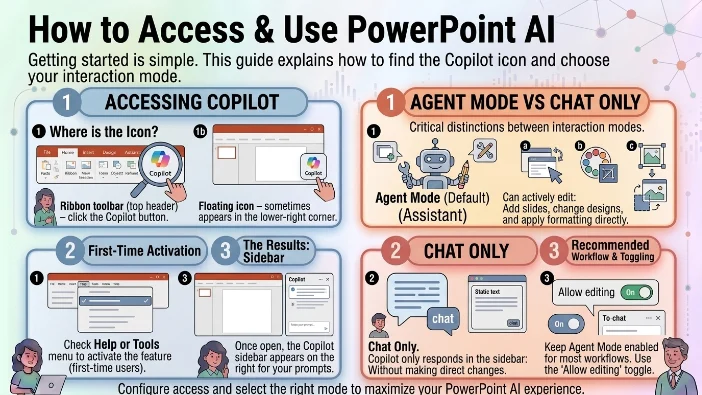
Getting started is simple. In PowerPoint, look for the Copilot icon. It usually appears in two places :
- The Ribbon toolbar (top header) – click the Copilot button
- Floating icon – sometimes appears in the lower-right corner
First-time users should check the Help or Tools menu to activate the feature. Once open, the Copilot sidebar appears on the right side of your screen, ready for your prompts .
Agent Mode vs Chat Only
Here’s a critical distinction. Copilot has two operating modes :
- Agent Mode (default): Copilot can actively edit your presentation, add slides, change designs, and apply formatting directly in the main window
- Chat Only: Copilot only responds in the sidebar without making direct changes
For most workflows, keep Agent Mode enabled. You can toggle this by clicking the “Allow editing” button above the chat window .
Ten Powerful Things PowerPoint AI Can Do
Let’s cut through the marketing fluff and look at what Copilot actually delivers.
Generate a Complete Presentation from a Prompt
This is the headline feature. Describe what you want, and Copilot builds the first draft.
You provide context about the topic, audience, and tone, and Copilot generates a structured presentation with appropriate outline, slide content, design, and stock images .
Example prompt:
“Create a 6-slide presentation for a sales meeting focusing on Q1 revenue. The audience is the sales team, keep the tone professional and focused on sales data.”
Copilot may ask follow-up questions about visual style and desired detail level, then generate the presentation template .
Pro tip: The more specific you are, the better the results. Include slide count, target audience, tone, and any specific data points you want included.
Turn Documents into Presentations
This feature saves hours. Attach a Word document, Excel spreadsheet, or PDF, and Copilot transforms it into a polished slide deck .
The AI extracts text structure (using Word’s heading styles), creates slide content, and maintains data accuracy. Users can attach reference files for more comprehensive decks .
Best use cases:
- Long reports into executive summaries
- Project proposals into pitch decks
- Onboarding documents into training presentations
- Business plans into investor decks
Enhance Slide Design and Layouts
Struggling with design? Copilot can apply themes, color palettes, and layouts to new or existing presentations .
Access this through the Design tab and select “Design Suggestions.” Copilot suggests layouts with interesting arrangements and high-quality stock images.
Add Stock Images and AI-Generated Graphics
Visual content makes presentations pop. Copilot can:
- Suggest relevant stock images from the Microsoft 365 library
- Create brand-new AI-generated images using DALL-E 3 technology
- Pull organization-approved brand images if your admin set them up
Image generation example:
“Create a photorealistic image of a diverse group of young professionals collaborating in a modern office, natural lighting, professional attire.”
Quick reality check: AI image generation in PowerPoint isn’t always reliable. Some users report occasional server errors or inconsistent results. Always review generated images carefully for accuracy and appropriateness .
Create Custom AI Slide Backgrounds
Need a unique background that matches your presentation theme? Chat with Copilot about your desired art style, color palette, and mood. Browse AI-generated options, download your favorite, and apply it across all slides through the Design tab’s Format Background option .
Generate Presentation Summaries
When someone sends you a 50-slide deck and you need the key points fast, Copilot’s summary feature saves the day .
Useful prompts:
- “Summarize this presentation”
- “Show key slides”
- “Show action items”
Copilot provides bulleted summaries with references showing where it pulled information, making verification easy .
Refine Slide Content and Formatting
Select any text box and Copilot offers rewriting options :
- Auto-rewrite: Improve clarity and flow
- Condense: Make text more concise
- Make professional: Adjust tone for business contexts
You can also prompt Copilot to ensure consistent fonts, spacing, and colors across all slides.
Generate Speaker Notes
Preparing to present? Copilot creates AI-generated speaker notes for each slide, helping you explain your content confidently .
This feature is especially valuable for pitch presentations where storytelling and delivery matter most.
Rehearse with AI Speaker Coach
Here’s an underrated gem. PowerPoint’s Presenter Coach (available through the Slide Show tab) provides real-time feedback on your delivery .
The AI analyzes:
- Speaking pace
- Filler words
- Sensitive language
- Eye contact (via camera)
- Overall presentation skills
After rehearsal, you receive a summary report with improvement suggestions.
Brainstorm and Generate Ideas
Starting from zero? Use Copilot as a brainstorming partner. Ask for topic suggestions, title ideas, or structure recommendations. When you’re ready, tell Copilot to generate the presentation draft .
How to Write Better Copilot Prompts
The quality of your AI-generated presentation depends heavily on your prompt. Microsoft recommends including four key elements :
| Element | What It Does | Example |
|---|---|---|
| Goal | Basic intention | “Create a new PowerPoint presentation” |
| Context | Background info | We need to present the product’s features and benefits to potential clients |
| Source | Reference material | “…using the latest from /Market Trend Report.docx” |
| Expectations | Specific output requirements | “Please include an overview, key features, and a comparison to similar products. Use simple language.” |
Best Practices for Document Conversion
When turning Word documents into presentations, follow these tips :
Use Word Styles: Leverage heading styles in Word to help Copilot understand your document structure. By using Styles to organize your document, Copilot will better understand how to break it up into slides .
Include relevant images: Copilot tries to incorporate images from your Word document into the presentation. If you want images carried over, include them in the source document .
Start with a template: If your organization uses a standard template, open that file first before creating a presentation with Copilot. This lets Copilot know you want to retain the presentation’s theme and design .
Specify presentation length: Tell Copilot how many slides you want. Options include Short (3-8 slides), Medium (9-17 slides), or Long (18+ slides) .
AI vs Human Designer: The Honest Truth
The question everyone asks: Can PowerPoint AI replace human designers?
The answer depends entirely on the context.
Where PowerPoint AI Shines
For these use cases, AI is genuinely good enough:
Internal updates with light data
Weekly project updates, team all-hands, and product demos where speed beats polish. AI can cut first-draft time from hours to minutes.
Early client drafts
Get from zero to a structured, visually coherent draft fast, then iterate with feedback. Research shows hybrid workflows typically compress total prep time significantly.
Education and training
Lesson plans and workshops where templates and consistency matter more than bespoke visuals.
Doc-to-deck transformations
Turning long memos or reports into slide-ready outlines saves hours.
Where Human Designers Still Win
For these scenarios, human expertise remains essential:
Brand-critical deliverables
Investor presentations, major sales proposals, and executive keynotes where every detail matters. AI-generated decks can feel templated without significant human editing.
Complex data storytelling
Multi-source charts, reconciled metrics, and nuanced narrative pacing demand expert judgment. AI systems can misstate facts, requiring thorough human review .
Motion and interaction
Advanced animations, video integration, and showpiece storytelling require human creativity.
New visual systems
When the deck must establish or evolve a brand identity, type system, or bespoke illustration style, AI simply can’t match human design thinking.
The Hybrid Sweet Spot
Here’s the pragmatic truth most teams are adopting: AI-assisted, human-led.
The workflow that works:
- Use AI to generate the outline and initial slides
- Apply your brand kit and fix spacing, hierarchy, and contrast
- Validate facts, data labels, and chart types
- Run an accessibility pass and export-fidelity check
- Add custom visuals, narrative pacing, and presenter notes guided by a designer
Tools Comparison: Who Does What Best
Here’s a quick comparison of leading AI presentation tools:
| Tool | AI Strength | Best Export | Brand Controls | Best For |
|---|---|---|---|---|
| PowerPoint + Copilot | Prompt-to-deck, doc-to-deck | Best-in-class PPTX | Deep M365 controls | Teams in Microsoft ecosystem |
| Google Slides + Gemini | Text refinement, image gen | PPTX/PDF | Workspace brand kits | Google-centric teams |
| Canva | Magic Design/Write | PPTX, PDF, MP4 | Brand Kits (higher tiers) | Marketing teams needing quick polish |
| Gamma | Prompt-to-web slides | PPTX/PDF | Pro tier required | Web-native storytelling |
Important note: Capabilities change rapidly. Microsoft’s Copilot features continue rolling out across platforms, so check your specific tenant availability.
The Critical Caveats
Let’s be honest about limitations.
Hallucinations Are Real
Generative AI sometimes fabricates information. Microsoft acknowledges this and recommends human review for all AI-generated content . Always fact-check AI-generated claims. Your reputation depends on accuracy, not speed.
Image Generation Isn’t Always Reliable
During testing, Copilot sometimes returned server errors when generating images . After about a day and a half, the service began working again. Don’t rely on it for last-minute image needs.
Export Fidelity Varies
While PowerPoint maintains excellent PPTX fidelity, other AI tools often export decks that need cleanup. Layouts may reflow, fonts may change, and complex animations may break. If you need strict compatibility, stick with native PowerPoint.
Real-World Use Cases That Actually Work
The Consultant’s Secret Weapon
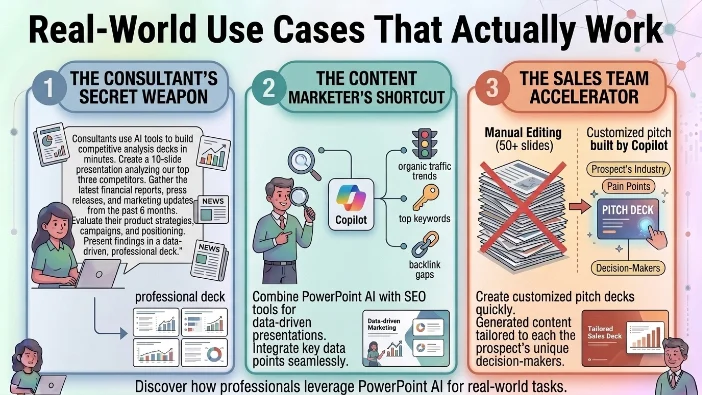
Consultants use AI tools to build competitive analysis decks in minutes. The prompt might look like: “Create a 10-slide presentation analyzing our top three competitors. Gather the latest financial reports, press releases, and marketing updates from the past 6 months. Evaluate their product strategies, campaigns, and positioning. Present findings in a data-driven, professional deck.”
The Content Marketer’s Shortcut
Content marketers combine PowerPoint AI with SEO tools to create data-driven presentations. Use Copilot to draft the deck from competitor research, then cross-check organic traffic trends, top keywords, and backlink gaps.
The Sales Team Accelerator
Sales teams use AI to create customized pitch decks for each prospect. Instead of manually editing 50+ slides per proposal, Copilot generates tailored content based on the prospect’s industry, pain points, and decision-makers.
Is PowerPoint AI Worth It?
Yes, with some important caveats.
For Most Professionals: Absolutely. If you already have Microsoft 365, you’re likely already paying for Copilot access. Using AI to speed up internal decks, generate first drafts, and handle repetitive formatting tasks saves hours. The hybrid approach (AI drafting + human refinement) consistently delivers significant time savings.
For Design Professionals: It’s a tool, not a replacement. AI handles the grunt work but can’t match human judgment for brand-critical decks, complex data storytelling, or bespoke visuals. The hybrid workflow wins here too, with designers focusing on what matters while AI handles the heavy lifting.
For Teams in Microsoft Ecosystem: It’s a no-brainer. PowerPoint + Copilot offers seamless integration with existing workflows, best-in-class PPTX fidelity, and enterprise security controls. If your organization uses Microsoft 365, you’d be leaving productivity on the table by ignoring it.
The Bottom Line
PowerPoint AI isn’t about replacing humans. It’s about amplifying what humans can do. When you combine AI speed with human judgment, creativity, and context, you get presentations that are faster to create and better to deliver.
The technology is here, it works, and it’s getting better every month. The smartest approach? Learn to use it well, understand its limits, and never skip the human review. Your audience will thank you for the time you saved and the quality you delivered.
FAQs
How do I access PowerPoint AI?
Click the Copilot button in the PowerPoint ribbon toolbar or look for the floating icon in the lower-right corner. Users with Microsoft 365 subscriptions get access, though enterprise users may require additional licenses .
Is PowerPoint AI free?
It’s included with most Microsoft 365 subscriptions (Personal, Family, Premium). Enterprise customers may require additional Copilot licenses. A basic version is available through Copilot Chat hub .
Can PowerPoint AI create images?
Yes. Copilot uses DALL-E 3 and other models to generate custom images based on your descriptions. It can also suggest stock images from the Microsoft 365 library .
Can I turn a Word document into a PowerPoint presentation?
Yes. Attach the Word document to Copilot and prompt it to “Create a presentation from this file.” The AI analyzes structure (using heading styles) and generates slides .
How accurate is PowerPoint AI?
Generally good for structure and ideas, but not perfect. AI can hallucinate facts or misinterpret context. Always review and verify AI-generated content .
Does Copilot work with PDFs?
Yes. You can reference PDF files when creating presentations. The AI extracts content and structure to generate slides .
Can I use PowerPoint AI offline?
Copilot features require an internet connection. The AI processing happens in Microsoft’s cloud, so offline access is not available.
Is my data secure with PowerPoint AI?
Microsoft states that Copilot works within your tenant boundary and honors permissions. Data remains within your organization’s trust boundary.
Conclusion
PowerPoint AI through Microsoft Copilot isn’t some magical presentation fairy that waves a wand and produces pitch perfect decks. It’s a tool. A genuinely powerful one for certain use cases, but a tool nonetheless.
Think of it like having an incredibly fast, moderately skilled junior designer who never sleeps. You give them directions, they crank out a draft in seconds, and then you refine it to match your standards. The AI handles the grunt work of structure, layout, and basic design. Your job is to bring the strategy, the nuance, and the final polish.
Here’s what makes PowerPoint AI genuinely valuable:
The speed is unmatched. Thirty seconds from a text prompt to a fully structured slide deck? That’s not just convenient; it’s a productivity superpower. When inspiration strikes or a deadline looms, you can capture your ideas immediately without losing momentum.
The document-to-deck transformation is a game-changer. Converting a 50-page Word report into a 15-slide presentation used to take hours of manual cutting and pasting. Now it happens in minutes. The AI extracts the structure, creates logical slide breaks, and even pulls in relevant images.
But here’s the hard truth you need to hear:
The AI still thinks like an AI. The slide titles can feel generic. The bullet points can be repetitive. The suggested layouts might not match your brand’s visual identity perfectly. And those AI-generated images? Sometimes they’re brilliant. Sometimes they look like a fever dream from a malfunctioning robot.
PowerPoint AI gives you a 70% finished product. You still need to bring that final 30% through your own expertise, strategic thinking, and creative judgment. If you’re expecting boardroom-ready decks straight from a prompt, you’ll be disappointed. If you’re expecting a brilliant starting point that shaves hours off your workflow, you’ll be thrilled.
The real winners here are:
- Busy professionals who need internal decks and team updates without spending hours on formatting
- Consultants who create client presentations and need to iterate quickly
- Educators who build lesson materials and training content regularly
- Sales teams who customize pitch decks for each prospect
- Anyone who dreads staring at a blank PowerPoint slide
The losers are:
- Design purists who believe AI has no place in visual communication
- Professionals demanding broadcast-quality, pixel-perfect decks from a single prompt
- Anyone who refuses to do additional review and refinement
So what’s the final call?
For most Microsoft 365 users, PowerPoint AI is essentially free (since you’re already paying for the subscription). And for that price, the value proposition is exceptional.
But here’s my honest advice: start with specific, low-stakes projects. Test the water with internal updates or draft decks before using it for client-facing materials. Learn its quirks and limitations. Understand what prompts work and which ones fall flat. Once you’ve mastered the tool, then apply it to higher-stakes presentations.

Justin Powell is a writer at GramBrix.com who focuses on grammar, clarity and effective communication, helping readers strengthen their language skills.