
Last Updated on August 16, 2026
Napkin AI is a free text to diagram tool that turns your notes, outlines, and documents into professional visuals in seconds. Just paste your text, click the lightning bolt, and choose from flowcharts, mind maps, timelines, or infographics. Unlike static image generators, every visual stays fully editable so you can tweak colors, swap icons, and adjust layouts without starting over. The free plan gives you 500 weekly credits with PNG and PDF exports; paid plans unlock SVG, PPTX, and custom branding. Perfect for presentations, blog posts, lesson plans, and brainstorming no design skills required.
The Napkin AI Phenomenon: Visual Thinking Made Effortless
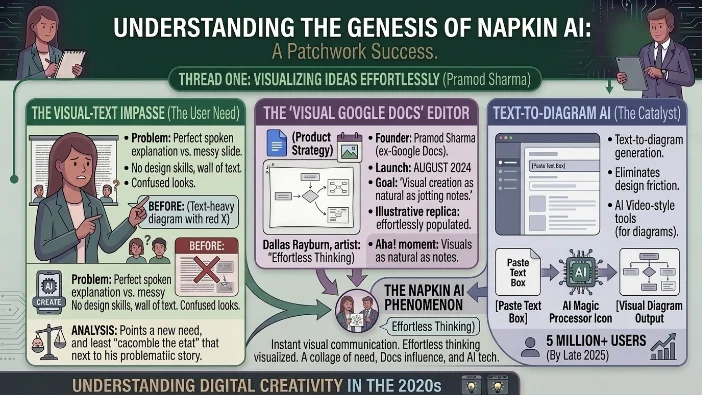
You know that moment when you explain an idea perfectly out loud, but then you try to put it on a slide and suddenly you’ve got a wall of text and confused looks? We’ve all been there.
Napkin AI solves this problem head-on. This text-to-diagram AI tool eliminates the friction between having an idea and visualizing it. No design skills required. No wrestling with complicated software. Just paste your text and watch visuals appear.
Napkin AI officially launched in August 2024. The founder, Pramod Sharma, spent years at Google working on the Docs team, and that influence shows. He describes Napkin AI as a “visual Google Docs editor” with a mission to make creating visuals as natural as jotting down notes . By late 2025, the platform had already crossed 5 million registered users.
Napkin AI isn’t an image generator like Midjourney or DALL-E. It’s a text-to-visual AI tool designed for business professionals, educators, students, and content creators who need structured visuals like flowcharts, diagrams, mind maps, and infographics . The visual output is clean, professional, and always editable.
How This AI Diagram Generator Actually Works
The magic behind Napkin AI is refreshingly simple. You don’t need to learn complex prompting techniques. You don’t need to understand design principles. You just need words.
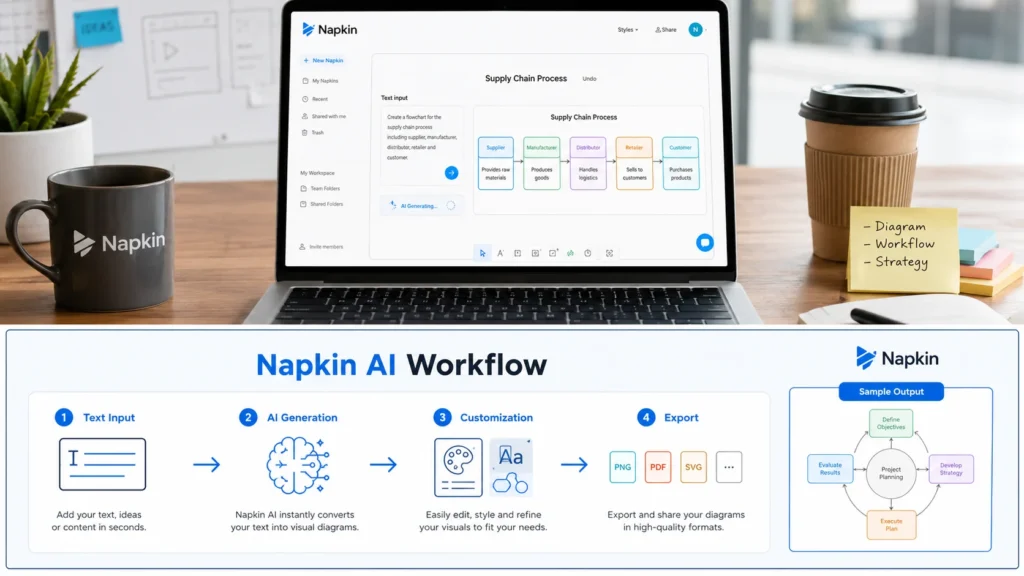
Napkin AI follows a straightforward three-step workflow :
Step 1: Input Your Text
You have two options here. You can paste your own text directly into the editor. This works best when your content has clear structure like headings, bullet points, or numbered lists. Alternatively, you can let the AI draft something for you. Just type a topic like “how to improve team productivity” and Napkin AI generates a basic outline.
The editor looks and feels like a clean word processor. No steep learning curve. No confusing menus.
Step 2: Generate Visuals
Highlight any text block and click the lightning bolt icon. Napkin AI analyzes your content’s structure and suggests between five to ten visual templates . These options cover flowcharts, process diagrams, comparison charts, mind maps, timelines, pyramids, Venn diagrams, and more.
Generation takes about 10 to 30 seconds depending on text complexity .
Step 3: Customize and Export
This is where Napkin AI differentiates itself from static image generators. Every visual is fully editable .
You can:
- Change colors and fonts
- Swap out icons using Spark Search
- Adjust labels and layouts
- Add sketches or annotations
- Regenerate specific parts without starting over
Once you’re happy with the result, export as PNG, PDF, SVG, or PPTX (depending on your plan).
Napkin AI currently offers a free tier with a 500 AI credits weekly allowance. Credits are consumed at roughly 1 credit per word selected for generation . The Pro plan provides additional customization and export features.
Real Uses for This AI Visual Note Generator
Polishing Presentations That Actually Engage
The most popular use case for Napkin AI is transforming text-heavy slides into visually compelling presentations . A general rule in presentation design is to minimize words. This AI diagram generator makes that possible without spending hours in design software.
One CNET reviewer tested Napkin AI on a film class presentation. An original slide had seven dense bullet points. Napkin AI generated multiple options including a pro-con comparison graphic and a more artistic visual that summarized the main point . The revised slide was significantly easier to digest.
The tool generated graphics for dry communication theories, novel summaries, and academic concepts. Each time, Napkin AI produced visuals that made the content more engaging and understandable .
Explaining Complex Concepts Simply
Napkin AI works well for breaking down complicated topics . The tool reads your text, identifies key relationships, and suggests visual frameworks to convey meaning.
A test using the concept of the fediverse (decentralized social media platforms) showed how Napkin AI handles complexity. The first few graphic suggestions were misleading. They pulled correct keywords but positioned them incorrectly. After scrolling through options, the reviewer found a graphic that accurately contextualized ActivityPub protocols and highlighted decentralization and open source principles .
The lesson here is to be selective. Napkin AI provides multiple perspectives. Your job is to choose the one that best matches your intended message.
Brainstorming Visual Ideas
When you’re not sure what type of graphic works best, Napkin AI serves as a brainstorming partner . The tool generates diverse visual approaches based on the same text, letting you explore options you might not have considered.
A test on writing better AI prompts highlighted three essential elements. Napkin AI produced several decent visuals, but one stood out. The graphic displayed these elements as building columns—removing one caused the structure to collapse . This implicit storytelling communicated importance more effectively than a simple list.
This approach works well for content creators who need to quickly visualize blog posts, social media content, or report sections.
Educational Materials
Teachers and educators use Napkin AI to enhance syllabi, slide decks, and handouts with visual learning objectives . The tool can visualize frameworks like TPACK (Technology, Pedagogy, and Content Knowledge) in seconds.
One educator used Napkin AI to create a custom metaphor of a caterpillar transforming into a butterfly to explain educational evolution . This transformed abstract theory into accessible visual content.
Napkin AI generates diagrams from literature reviews, helping researchers track research branches, key models, and theoretical frameworks . This clarity helps identify patterns and gaps in existing work.
Content Marketing
Blog posts with images receive significantly more engagement. But hiring a designer for every article is expensive and time-consuming. Napkin AI offers a middle ground.
Write your article, paste key sections into Napkin AI, generate relevant diagrams, and embed them directly. Paid plans remove the watermark, so your content maintains a professional appearance.
Features That Set This Text-to-Visual AI Apart
Napkin AI includes several features designed for efficiency:
Spark Search lets you find specific icons to enhance your visuals . The icon library covers numerous categories, making it easy to match your content’s theme.
Connectors link different aspects of your graphic, demonstrating relationships and flows between elements .
Decorators provide searchable icons that add visual interest without cluttering your message .
Video Recording (currently in beta) allows you to record short animated videos directly within your documents . This adds a collaboration element, helping you explain your visual choices.
Collaboration Tools let you share documents with team members. Set permissions for viewing, commenting, or editing .
Multi-Format Export supports PNG, PDF, SVG, and PPTX . This flexibility means your visuals work across different platforms and contexts.
Pricing: Free Vs. Paid Plans
Napkin AI operates on a freemium model with clear upgrade paths .
Free Plan ($0) includes:
- 500 AI credits per week
- Unlimited visual editing
- Unlimited file import (PPT, DOC, PDF, HTML, MD)
- Unlimited PNG and PDF export
- Built-in styles and fonts
- Standard icons
- Napkin branding on visuals
Plus Plan ($9/month) includes:
- 10,000 AI credits per month
- Unlimited PPT and SVG export
- 3 Brand Styles
- Bold icons
- No Napkin branding
- Team management and billing
Pro Plan ($22/month) includes:
- 30,000 AI credits per month
- Exclusive designs
- Unlimited Custom Branding
- Upload your fonts
- Optional credit top-ups
The Credit System Explained: AI credits are consumed at roughly 1 credit per word selected for generation . So a 100-word block costs about 100 credits. The Free plan’s 500 weekly credits covers roughly 500 words of generation. The Plus plan’s 10,000 monthly credits covers about 10,000 words.
Limitations You Should Know About
Napkin AI excels at its core function, but it’s not a universal visual tool.
Not a Data Visualization Tool is the most important limitation. You cannot upload an Excel spreadsheet and get a bar chart or pie graph. Napkin AI works best with conceptual content, not datasets. Pasting a table with multiple data dimensions often leads to misinterpretation .
Limited Integrations mean you can’t directly connect Napkin AI to Google Slides, Notion, or Figma. You export files and manually import them into your target application . This creates friction for teams with automated workflows.
Customization Could Be Deeper. While visuals are editable, Napkin AI doesn’t offer the extensive control of dedicated design tools like Figma or Canva . Colors are adjustable but you can’t save brand palettes across projects (without Pro). Resizing visuals precisely is also challenging .
Human Involvement Remains Essential. Napkin AI generates options, but it doesn’t know your audience or your message . You still need to choose the right visual, edit content appropriately, and ensure the final product communicates effectively. The tool is a powerful assistant, not a replacement for strategic thinking.
How Napkin AI Compares to Competitors
| Feature | Napkin AI | Canva | ChatGPT Image Gen | Lucidchart |
|---|---|---|---|---|
| Text-to-visual | ✅ Yes | ❌ No | ✅ Yes | ❌ No |
| Editable output | ✅ Yes | ✅ Yes | ❌ No | ✅ Yes |
| No design skills | ✅ Yes | ⚠️ Basic | ✅ Yes | ❌ No |
| Data visualization | ❌ No | ✅ Yes | ❌ No | ✅ Yes |
| Export options | PNG, PDF, SVG, PPT | PNG, PDF, GIF, MP4 | PNG only | Varies |
A comparison test evaluating three AI tools on creating a diagram about romantic psychology demonstrated Napkin AI‘s strengths :
Napkin AI created a clean structure-based diagram in about 10 seconds. The process involved pasting text and clicking generate. Minimal effort required. The output focused on logical organization. Best for explaining concepts and structuring information.
Canva created visually rich content with templates but took several minutes. The design was more polished but required template selection and manual adjustment. Better for social media posts and visual-heavy content.
ChatGPT generated abstract representations with a different artistic approach. Better for emotional or creative visuals.
The verdict: choose Napkin AI when you need to explain structure. Choose Canva when you need visual polish. Choose ChatGPT when you need creative interpretation.
Quick Tutorial: Your First Napkin AI Visual in Minutes
Napkin AI runs entirely in your browser. No downloads required .
Step 1: Create Your Account
- Visit napkin.ai
- Click “Create my first Napkin”
- Sign up with Google or email
Step 2: Add Your Text
- Paste your own structured text (headings help)
- Or type a topic and let the AI draft an outline
- Hit Continue
Step 3: Generate Your Visual
- Hover to the left of any text block
- Click the blue lightning bolt
- Browse the suggested visuals
- Click the one you like
Step 4: Customize
- Click the graphic to open editing
- Change colors, fonts, labels, layout
- Search for new icons using Spark Search
- Add sketches or annotations if needed
Step 5: Export
- Click Export on your visual
- Choose PNG, PDF, SVG, or PPTX
- Or export the entire document
Step 6: Share (Optional)
- Click Share
- Add email addresses or generate a link
- Set viewer, commenter, or editor permissions
Who This AI Diagram Generator Serves Best
Napkin AI works well for several groups:
Content Creators need quick, professional visuals for blogs, newsletters, and social media. The tool eliminates design bottlenecks. No waiting for designers. No learning complex software .
Educators create handouts, lesson plans, and visual explanations of concepts. Visualizing teaching philosophies and learning objectives becomes straightforward .
Marketers build presentations, reports, and campaign materials. The text-to-visual workflow speeds up the creation of pitch decks and client deliverables .
Business Professionals communicate ideas visually without hiring designers. Project managers, product managers, and consultants benefit from rapid diagramming .
Students make presentations, study guides, and project visuals more engaging and understandable .
Napkin AI might not suit data analysts (who need advanced charting) or designers (who require pixel-perfect control). It’s also not ideal for teams needing extensive integrations with existing tools.
Practical Tips from Regular Users
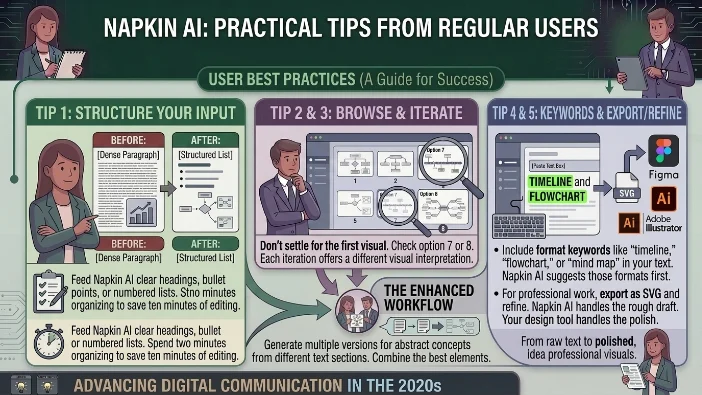
Structure Your Input First. Feed Napkin AI clear headings, bullet points, or numbered lists. Dense unformatted paragraphs produce generic outputs. Spend two minutes organizing your text before pasting. It saves ten minutes of editing later.
Browse All Options. Don’t settle for the first visual Napkin AI suggests. The seventh or eighth option might be the most suitable . Each iteration offers a different approach to representing your information.
Use Format Keywords. Include words like “timeline,” “flowchart,” or “mind map” in your text. Napkin AI becomes more likely to suggest those formats first.
Generate Multiple Versions. For abstract concepts, generate visuals from different text sections. Each block might yield a different visual interpretation. Combine the best elements.
Export and Refine. For professional work, export as SVG and refine in Figma or Adobe Illustrator . Napkin AI handles the rough draft. Your design tool handles the polish.
FAQs
Is Napkin AI free?
Yes. Napkin AI offers a Free plan with 500 AI credits per week and PNG/PDF exports. Paid plans remove watermarks and add features like SVG/PPT export and custom branding .
Does Napkin AI replace Canva?
No. Napkin AI is a document editor that suggests visuals based on text. Canva is a full graphic design platform with extensive templates and editing tools. They serve different purposes .
Can I use Napkin AI for data visualization?
No. Napkin AI cannot generate bar charts, pie graphs, or other data visualizations from spreadsheets. It works best with conceptual content like processes, relationships, and hierarchies .
What export formats does Napkin AI support?
Free plan supports PNG and PDF. Plus and Pro plans add SVG and PPTX support .
Who should use Napkin AI?
Anyone who writes documents and wants them to look more professional without learning design tools. Useful for presentations, proposals, reports, and educational materials .
Ready to Try Napkin AI?
Visit napkin.ai and create your free account. Paste your text. Generate your first visual in under a minute. See what the text-to-visual AI experience feels like.
Conclusion
Napkin AI does exactly what it promises. It turns text into visuals with minimal effort. The output is professional enough for most contexts. The speed is genuinely impressive. The free plan provides meaningful value.
The tool’s sweet spot is clear: structure-focused content like presentations, reports, educational materials, and blog posts. It’s less effective for data-heavy content or tasks requiring pixel-perfect design.
Napkin AI isn’t replacing designers. It’s replacing the frustration of staring at a blank slide wondering how to communicate your idea visually . For that purpose alone, it’s worth trying.
The best approach? Create a free account. Paste text from your last presentation. See what Napkin AI generates in 30 seconds. Then decide for yourself.
Napkin AI does exactly what it promises. It turns text into visuals with minimal effort. The output is professional enough for most contexts. The speed is genuinely impressive. The free plan provides meaningful value.
The tool’s sweet spot is clear: structure-focused content like presentations, reports, educational materials, and blog posts. It’s less effective for data-heavy content or tasks requiring pixel-perfect design.
Napkin AI isn’t replacing designers. It’s replacing the frustration of staring at a blank slide wondering how to communicate your idea visually . For that purpose alone, it’s worth trying.
The best approach? Create a free account. Paste text from your last presentation. See what Napkin AI generates in 30 seconds. Then decide for yourself.

Victoria Lane is a grammar-focused writer at GramBrix.com, passionate about helping readers master the rules of language. She provides clear explanations and practical examples that make writing more accurate, polished and confident.